Set up a Google Cloud service account
https://console.cloud.google.com
- Create a new project if you don’t have one
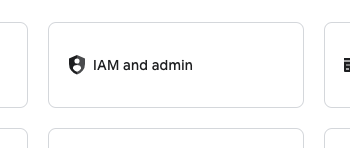
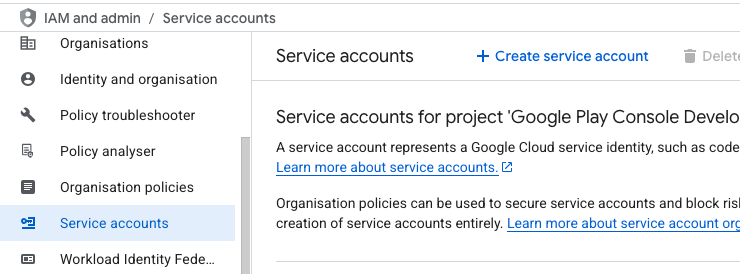
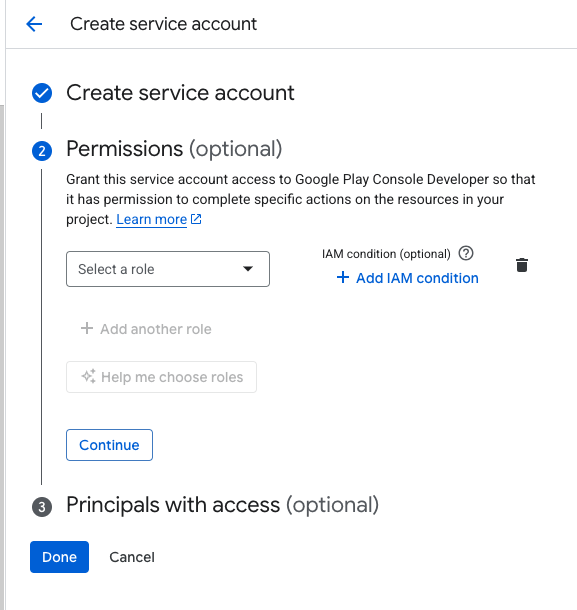
- Create a service account
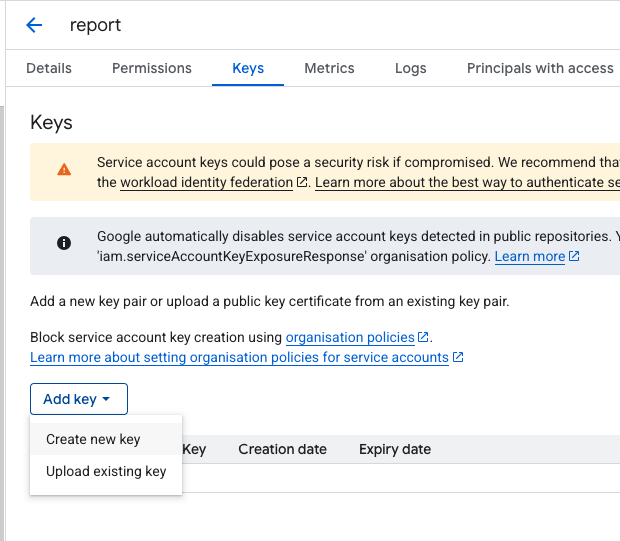
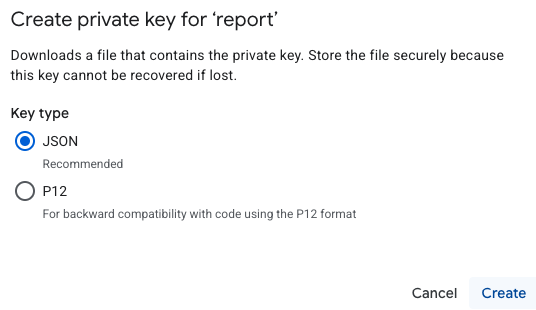
- Create a new key for this service account
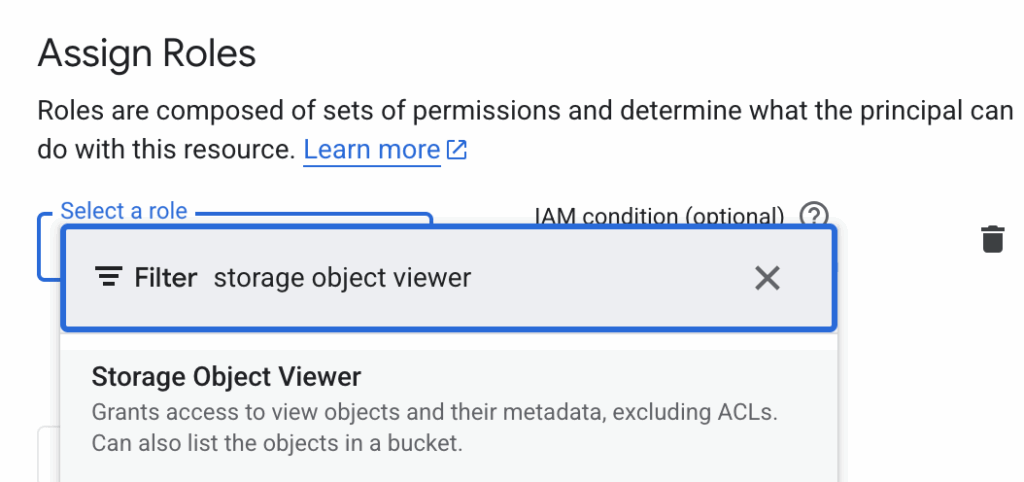
- Assign this role to download stats csv (App Download number, Install Events number, etc…)
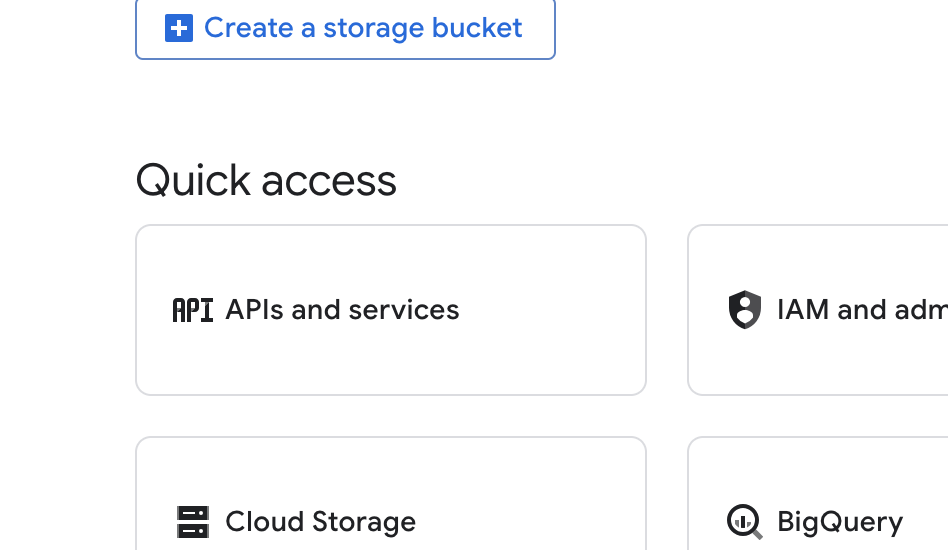
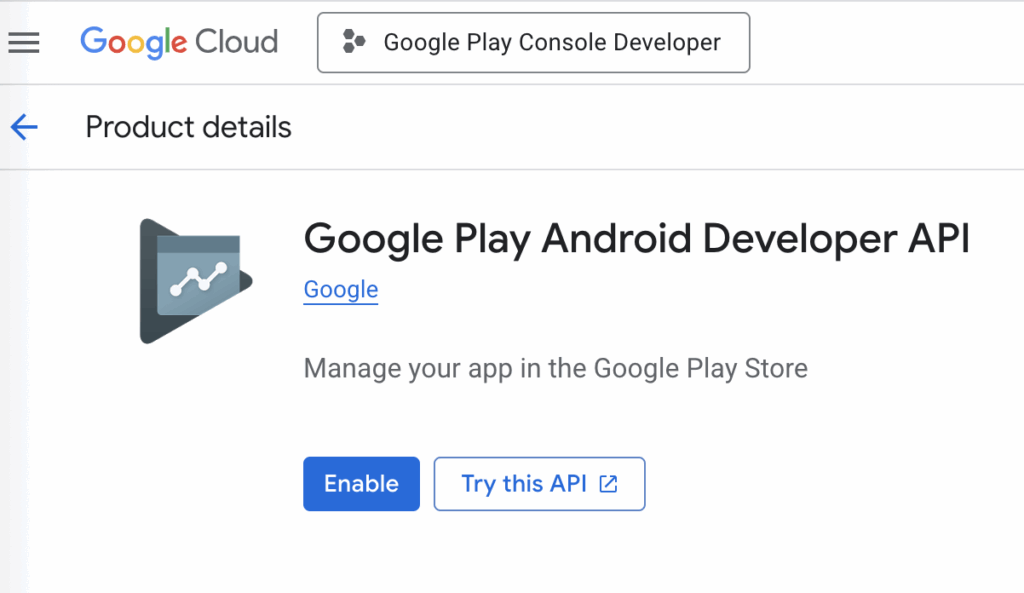
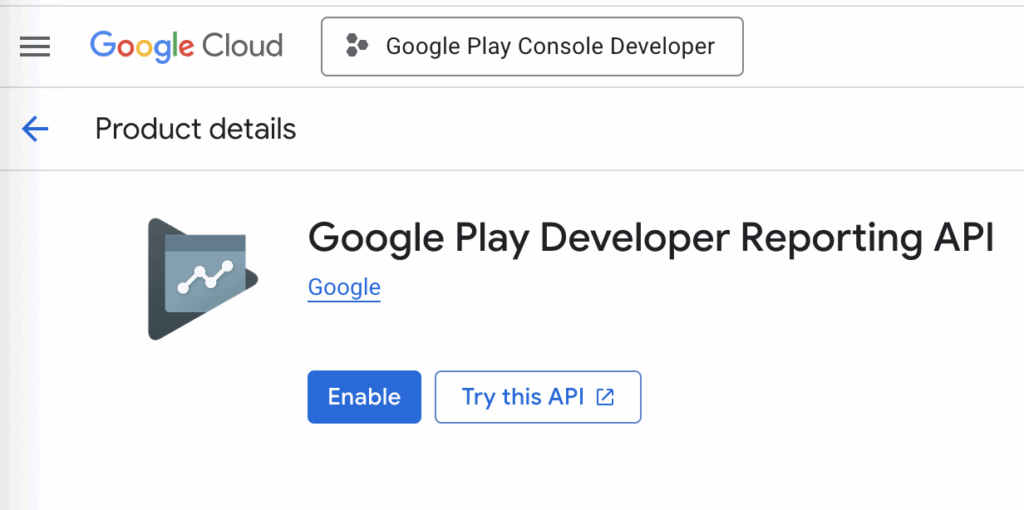
- Enable necessary APIs
Add service account to Play console
https://play.google.com/console
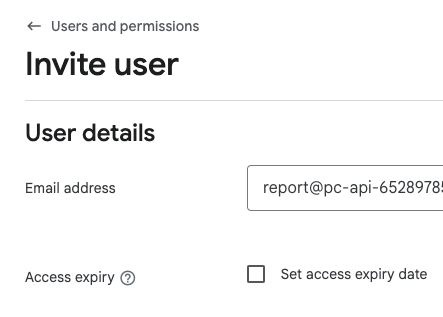
- Add service account email address to Play Console

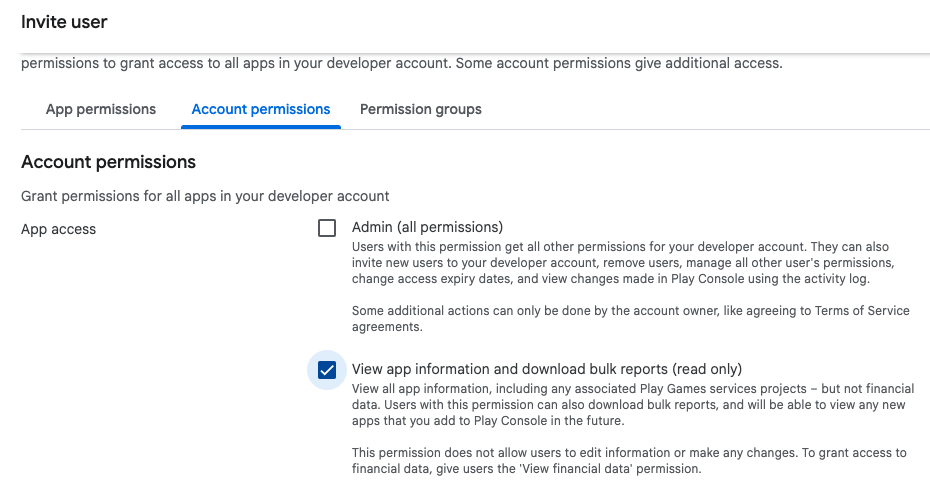
- Select this permission if you want to download stats csv (App Download number Install events, …)
Create a script to fetch Play console data
Troubleshooting
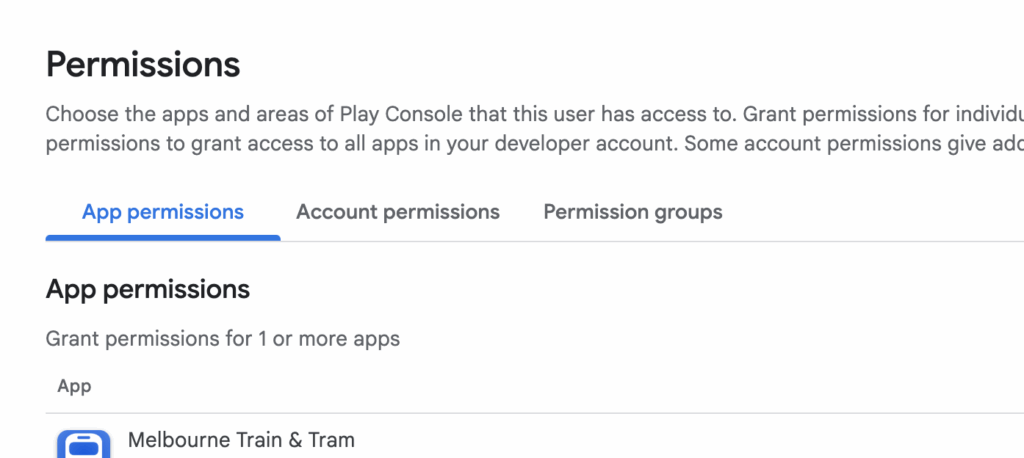
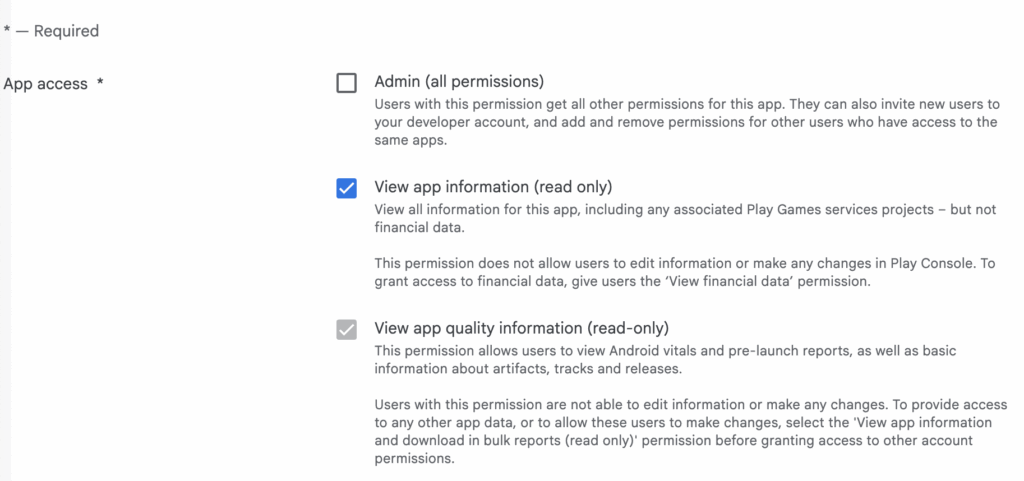
- If you want to specify a specific app in Play Console, select a specific app as follows. This is to retrieve app details, release details.
However, you still need the above “View app information and download bulk reports (read only)” to download csv
- If you get the error “Insufficient permission”, review the scopes in your code.
- ‘https://www.googleapis.com/auth/devstorage.read_only’ is a must-have to download csv stats files
- ‘https://www.googleapis.com/auth/androidpublisher‘ needs to have API “Google Play Android Developer API” enabled
- ‘https://www.googleapis.com/auth/playdeveloperreporting‘ needs to have API “Google Play Developer Reporting API” enabled
    const auth = new google.auth.GoogleAuth({
      credentials: keys,
      scopes: [
        'https://www.googleapis.com/auth/androidpublisher',
        'https://www.googleapis.com/auth/playdeveloperreporting',
        'https://www.googleapis.com/auth/devstorage.read_only'
      ],
    });
- or permission in service account – should not need though!
- or enable these APIs – should not need these though
Leave a Reply