Android
Mac
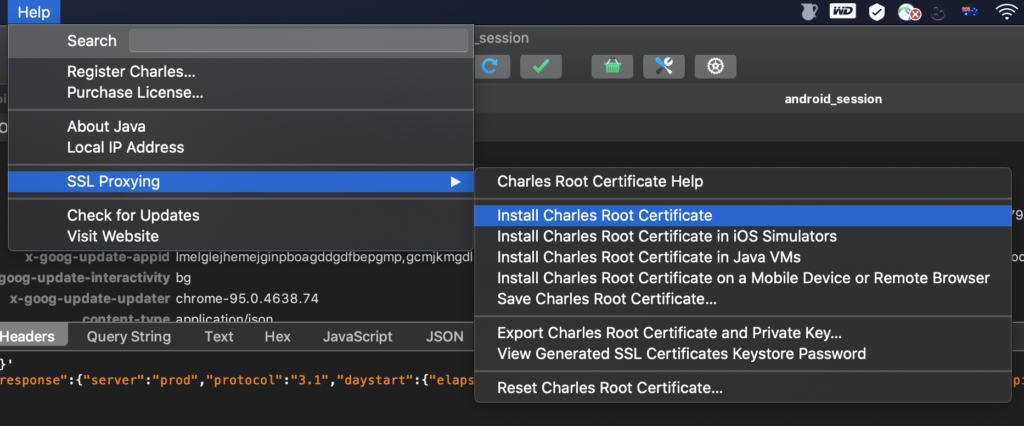
- Install “Charles Root Certificate” into “System” folder of Keychain
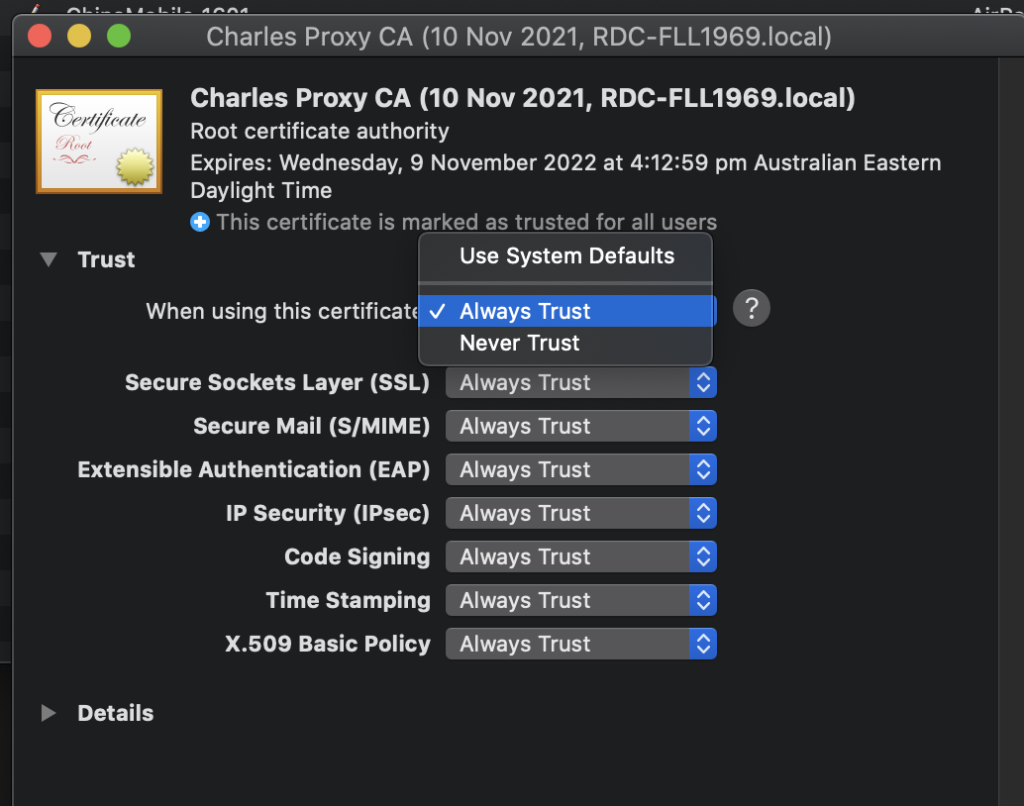
- Edit certificate to “Always Trust”
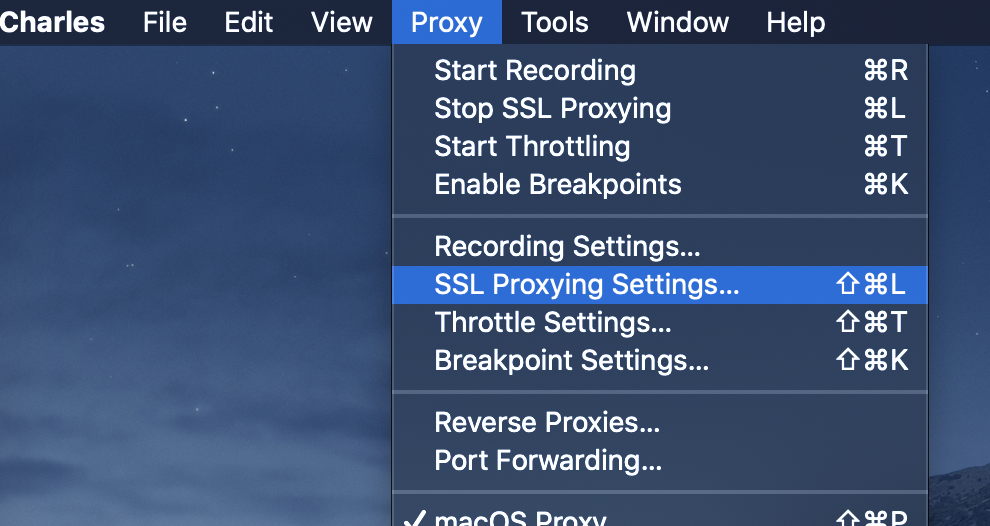
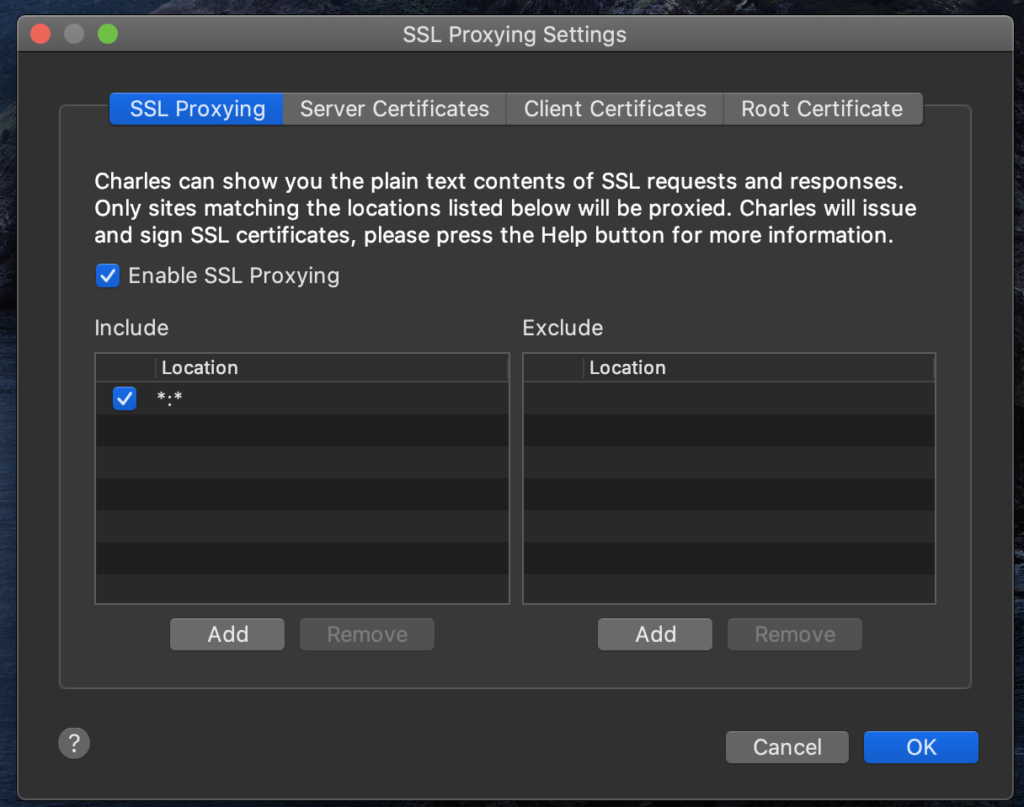
- Enable SSL Proxying
- Restart your Mac
Android device
Install wifi certificate
- Export root certificate from Charles
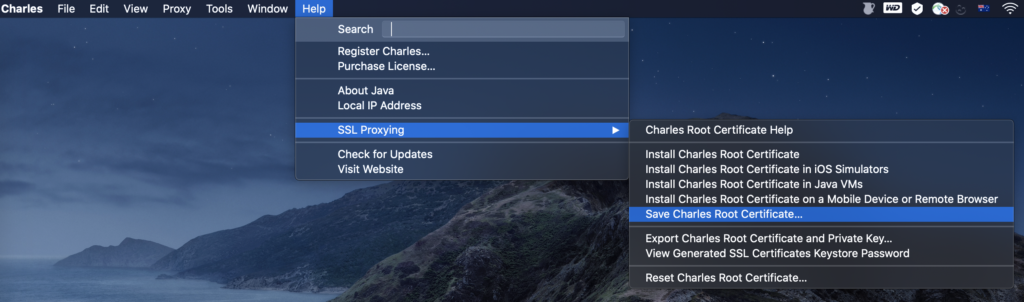
- Upload this file to Download folder of Android device
- Install “Certificates”
- “Network & internet” > “Network preferences” > “Install certificate”
Change wifi proxy setting from Android device
- Proxy: Manual
- Hostname: IP of your Mac
- Port: 8888
Install CA certificate
- Download CA certificate from “http://charlesproxy.com/getssl”
- Upload this file to Download folder of Android device
- Install “CA certificate” from Android device
- Encryption & credentials > Install a certificate > CA certificate
Set this in “network_security_config.xml”
<network-security-config>
    <debug-overrides>
        <trust-anchors>
            <!-- Trust user added CAs while debuggable only -->
            <certificates src="user" />
        </trust-anchors>
    </debug-overrides>
</network-security-config>
If it doesn’t work
- Make sure device connects to internet before changing to proxy
- Turn off wifi, then turn on wifi back
- Make sure “Proxy” > “Mac OS Proxy” is unchecked
- Try to change wifi proxy from Manual to Auto, then Auto to Manual again
Leave a Reply